

Purchase Orders (PO)
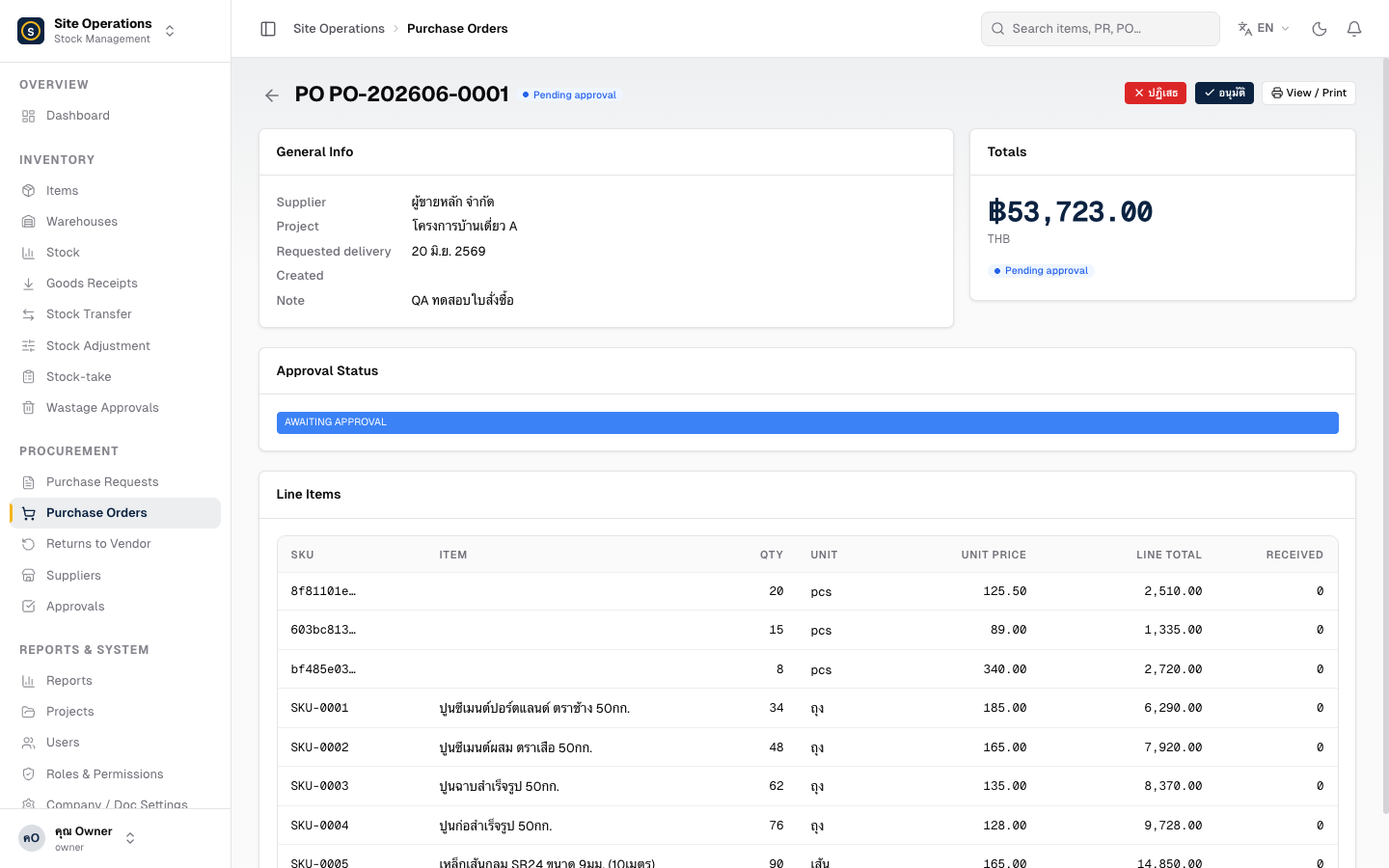
A Purchase Order (PO) can only be issued after a Purchase Request has been approved. The purchasing team selects a supplier, confirms pricing, and sends the PO for a final approval before placing the actual order.
Creating a Purchase Order
Section titled “Creating a Purchase Order”- Go to Purchase Orders (PO) → click “Create Purchase Order”
- Select the approved PR you want to convert into a PO
- Select a Supplier from the list already registered in the system
- Review the line items pulled from the PR — you can adjust the unit price for each item
- Enter any Discount and VAT (if applicable) — the system calculates the total automatically
- Enter the Project and a Note (if applicable)
- Click “Submit for Approval” — the system will show a preview of the LINE recipients before you confirm
Printing a PO as PDF
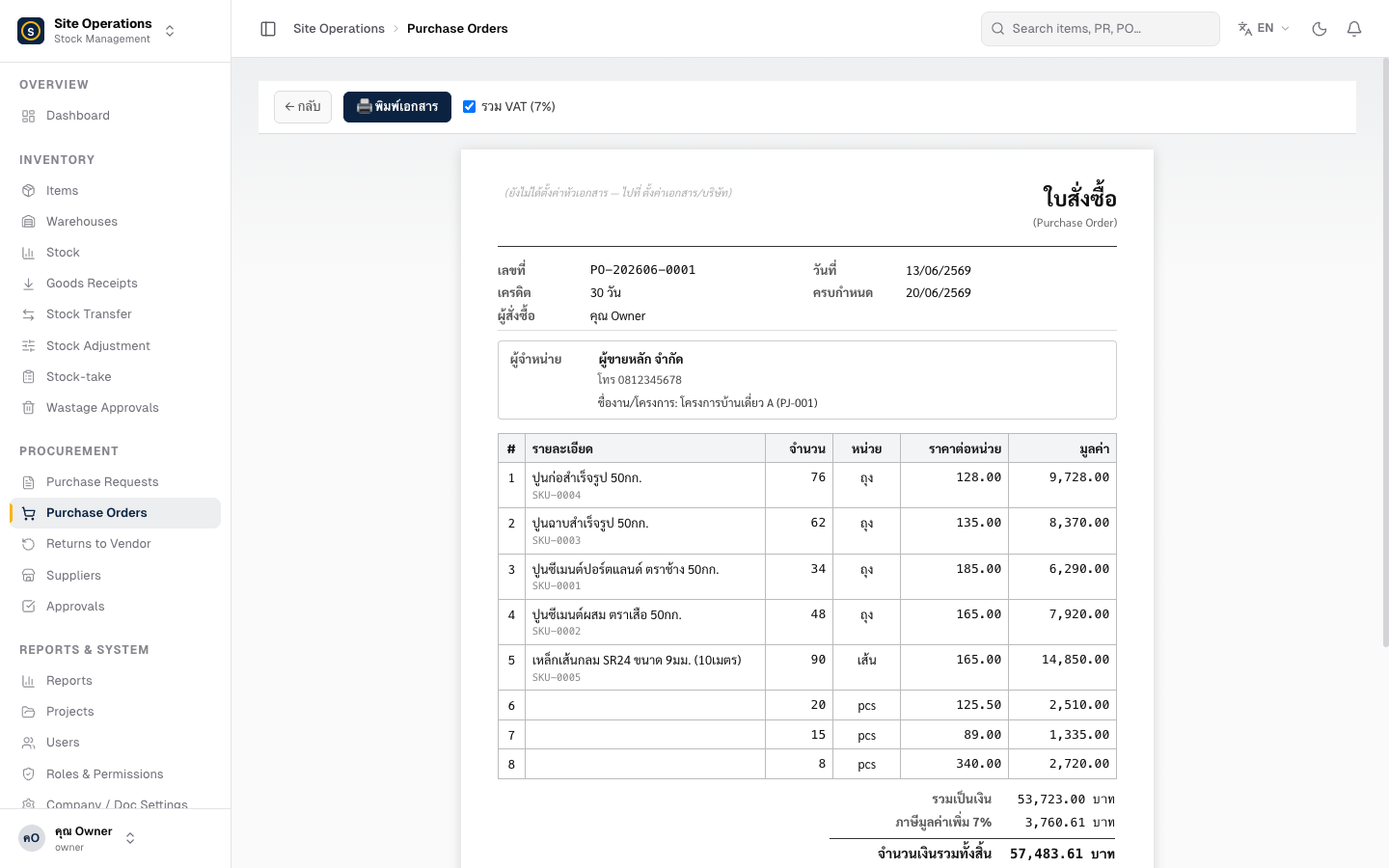
Section titled “Printing a PO as PDF”- Open the PO you want to print
- Click the “Print / PDF” button in the top-right corner
- Your browser’s print dialog will open — choose “Save as PDF” or send it directly to the printer for the supplier
PO Approval Levels
Section titled “PO Approval Levels”POs are subject to a two-tier approval process based on the order value.
| Order Value | Approver(s) |
|---|---|
| Up to 50,000 THB | Purchasing |
| Over 50,000 THB | Purchasing → Owner |